How to change archive destination folder on oralce 11g

old Archive destination            /u01/ora/db/tech_st/11.1.0/dbs/arch
 New  Archive destination       /u01/Arch_BKP

Note:- Check your Database running with SPfile or Pfile.

SELECT DECODE(value, NULL, 'PFILE', 'SPFILE') "Init File Type" 
   FROM sys.v_$parameter WHERE name = 'spfile';
SQL> show parameter spfile;
SQL> SELECT DECODE(value, NULL, 'PFILE', 'SPFILE') "Init File Type"
         FROM v$parameter WHERE name = 'spfile';


If Database using SPfile than directly use below statement or restart Archive-log.

SQL> alter system set log_archive_dest='/u01/Arch_BKP' scope=spfile;


Steps:-1
 Connect to SQL as sysdba

[ora@sujeet 11.1.0]$ sqlplus / as sysdba  

 Steps:-2
Down Database
SQL> shutdown immediate;


 Steps:-3
Start with Mount
SQL> startup mount

 Steps:-4
If your Database in Archive mode:-

SQL> archive log list

Database log mode              Archive Mode
Automatic archival             Enabled
Archive destination            /u01/ora/db/tech_st/11.1.0/dbs/arch
Oldest online log sequence     8
Next log sequence to archive   9
Current log sequence           9

Change noarchive mode


SQL> alter database noarchivelog;

Database altered.

SQL> archive log list
Database log mode              No Archive Mode
Automatic archival             Disabled
Archive destination            /u01/ora/db/tech_st/11.1.0/dbs/arch
Oldest online log sequence     10
Current log sequence           11

 Steps:-5
You have 2 option to change Archive destination:-

1. edit the init.ora parameter file (Pfile)

 OR
Set other Archive destination location.
my Location= /u01/Arch_BKP

SQL> alter system set log_archive_dest='/u01/Arch_BKP' scope=spfile;

 Steps:-6
Change Archive Mode


SQL> alter database archivelog;

Database altered.


SQL> archive log list

Database log mode              Archive Mode
Automatic archival             Enabled
Archive destination            /u01/Arch_BKP
Oldest online log sequence     8
Next log sequence to archive   9
Current log sequence           9

 Steps:-7

Open Database:-
 SQL> alter database open;

Database altered.

SQL> alter system switch logfile;

System altered.


APP-PER-52803: Your business group does not match your security profile.


APP-PER-52803: Your business group does not match your security profile.


Cause

The issue is caused by the following setup:

This is a setup issue - check the settings of the HR:Business Group and
HR:Security Profile profile options at the Responsibility level. The value for
the business group profile option must match the business group defined for
the security profile specified by the Security Profile profile option.


Solution

-- To implement the solution, please execute the following steps:-

Change the setup for
HR:Business Group and
HR:Security Profile profile options at the Responsibility level.
The value for the business group profile option must match the business group defined for
the security profile specified by the Security Profile profile option

How to compile apps schema in Oracle applications R12


How to compile apps schema (or invalid objects in database) in Oracle applications R12

1.       Connect to Database Tier
[ora@sujeet ~]$ cd $ORACLE_HOME/rdbms/admin
[ora@sujeet admin]$ sqlplus / as sysdba

Find how many Invalid objects. (Here 182 row select).
SQL> select object_name, owner, object_type from all_objects where status= 'INVALID';
182 rows selected.
Run below scripts:-
SQL> @utlrp.sql
Again check Invalid objects. (Here 0 row select).
SQL> select object_name, owner, object_type from all_objects where status= 'INVALID';
no rows selected

2. From application tier (using adadmin)
a) Login as application tier user.
b) Set environment variable.
c) Run “adadmin”
d) option 3 “compile/reload Applications Database Entities menu
e) option 1 “Compile Apps Schema”


3. From SQL (Individual objects)
a) Identity Invalid Object

SQL> select object_name, owner, object_type from all_objects where status= 'INVALID';
b) SQL> alter [object] [object_name] compile;

How to get Client IP address in oracle apps.

Connect with APPS User.

Run below Statement.

SQL> set line 1000
SQL> select SID, PROCESS, MACHINE, CLIENT_IDENTIFIER from v$session;

SID     PROCESS          MACHINE            CLIENT_IDENTIFIER
322        19943           Sujeet.oracle.com            Sujeet jha
262        19943           Sujeet.oracle.com             Sujeet jha


Login with Application User.

[appl@sujeet]$ ps -ef|grep 19943 <User latest Process id>

502      19943  6616  0 14:35 ?        00:00:34 /u02/apps/apps/tech_st/10.1.2/bin/frmweb server webfile=HTTP-0,0,1,default,192.168.0.1
502      23747 23723  0 16:38 pts/2    00:00:00 grep 19943


OUT PUT:- 
Client Name:- Sujeet jha
Machine Name:- sujeet.oracle.com
IP:- 192.168.0.1


A vnc server is already running as 2 failed

I am  using vnc on my Redhat 5.8 box. I used "service vncserver start" to start vncserver at startup. But when I try to connect to "myhost:2" using vncviewer on another machine, it failed.

 When I type "ps -ef|grep vncserver", I couldn't see "vncserver" running

Error Detailed:- 

[root@Sujeet ~]# service vncserver start

Starting VNC server: 2:root
Warning: sujeet.oracle.com:2 is taken because of  /tmp/.X2-lock
Remove this file if there is no X server chintels.chintels.com:2
A VNC server is already running as :2
                                                           [FAILED]


Solution:-

remove below file.
/tmp/.X2-lock
 
[root@sujeet]# rm -rf /tmp/.X2-lock


[root@sujeet ~]# service vncserver start
Starting VNC server: 2:root
Warning: sujeet.oracle.com:2 is taken because of /tmp/.X11-unix/X2
Remove this file if there is no X server sujeet.oracle.com:2
A VNC server is already running as :2
                                                           [FAILED]


Solution:-


remove below file.
/tmp/.X11-unix/X2

[root@sujeet ~]# rm -rf /tmp/.X11-unix/X2


[root@sujeet ~]# service vncserver start
Starting VNC server: 2:root
New 'sujeet.oracle.com:2 (root)' desktop is sujeet.oracle.com:2

Starting applications specified in /root/.vnc/xstartup
Log file is /root/.vnc/sujeet.oracle.com:2.log

                                                           [  OK  ]

Issue Resolve try to connect with VNC tool


How to check if the User is connected to the Databaes from SQLPLUS or TOAD


SQL> desc v$session;

sql> select program, machine, CLIENT_IDENTIFIER   from V$session;


SQL> SELECT USERNAME, SCHEMANAME,PROGRAM FROM V$SESSION;

sql> select osuser, machine, terminal from v$session;

sql> select client_info, machine columns from V$session;

sql> select program from v$session;

sql> select distinct machine from v$session;

sql> select program, osuser, machine, client_info from V$session;


SQL> set line 50000

SQL> SELECT USERNAME, SCHEMANAME, OWNERID,  LOGON_TIME, CLIENT_INFO, SERVER, CLIENT_IDENTIFIER,RESOURCE_CONSUMER_GROUP,PROGRAM FROM V$SESSION;

USERNAME                       SCHEMANAME                     PROGRAM
------------------------------ ------------------------------ ------------------------------------------------
APPS                           APPS                           frmcmp_batch@sujeet.com (TNS V1-V3)


How to configure VNCSERVER on RHEL5.8

Introduction
Most of the time as a system administrator you are managing your servers over the network.
 It is very rare that you will need to have a physical access to any of your managed servers.
 In most cases all you need is to SSH remotely to do your administration tasks.
In this article we will configure a GUI alternative to a remote access to your RHEL server,
which is VNC. VNC allows you to open a remote GUI session to your server and thus providing you with a full graphical interface accessible from any remote location.

 Installation of VNC server
In order to enable an access to our Redhat Linux system using VNC we first need to install it. Make sure that you have your repository enabled and execute the command:

# yum install tigervnc-server

The above command will install the VNC server on your system.

Configuring VNC Server Access on a Redhat Linux5.8

I will show how to configure VNC server on Red Hat server and using VNC Viewer connect the server remotely from Windows XP.

Prerequisite:-

Disable Selinux.  
[root@sujeet ~]# cat /etc/selinux/config

# This file controls the state of SELinux on the system.
# SELINUX= can take one of these three values:
#     enforcing - SELinux security policy is enforced.
#     permissive - SELinux prints warnings instead of enforcing.
#     disabled - No SELinux policy is loaded.
SELINUX=disabled
# SELINUXTYPE= can take one of these two values:
#     targeted - Targeted processes are protected,
#     mls - Multi Level Security protection.
SELINUXTYPE=targeted


How to Disable the Firewall for Oracle Linux or Red Hat Enterprise Linux

To disable the firewall, run the following commands.

# service iptables stop

# chkconfig iptables off

1. Introduction

VNC allows you to open a remote GUI session to your
server and thus providing you with a full graphical
interface accessible from any remote location.

VNC allows you to open a remote GUI session to your
server and thus providing you with a full graphical interface accessible from any remote location.


2. Configure steps:-

Edit /etc/sysconfig/vncservers, and add the following to the end of the file.Hear my port=4
VNC User=root
save it.


[root@sujeet]# vi /etc/sysconfig/vncservers


# VNCSERVERS="2:myusername"
# VNCSERVERARGS[2]="-geometry 800x600 -nolisten tcp -nohttpd -localhost"


VNCSERVERS="4:root"
VNCSERVERARGS[4]="-geometry 1600x1200"


or

If you want multiple VNC session than you can use below lines add /etc/sysconfig/vncservers file.

VNCSERVERARGS[1]="-geometry 640x480"
VNCSERVERARGS[2]="-geometry 640x480"
VNCSERVERARGS[3]="-geometry 800x600"

3. Reset VNC User password.

Use below command-

[root@sujeet]# vncpasswd
Password: XXXXX
Verify: XXXXX

This password you can use connection time.


4. firewall setting

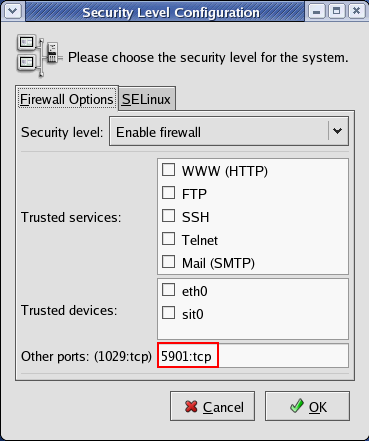
If you have firewall enable on Red Hat, be sure that your firewall configuration won’t block connection from remote computer by open port TCP 5901 for remote access. Open Applications -> System Settings -> Security Level. Add ’5901:tcp’ on Other ports.
Note: VNC uses TCP protocol on port 5901.

Open TCP port 5901 for remote access


5.  start the vncserver.

 [root@sujeet]#
service vncserver start
[root@sujeet]#
service vncserver stop

[root@sujeet]#

service vncserver status


service vncserver restart

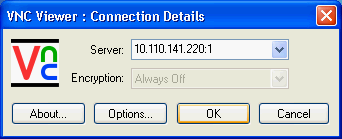
Now you can connect Red Hat server from remote computer. On my Windows XP computer, open VNC Viewer on Windows XP, type IP Address of Red Hat server with number as a username specify. In this example, I want to remote to Red Hat server as ‘root’ user which I assign as number 2 in step 2 and my Red Hat server is 10.110.141.220. So I type ’10.110.141.220:1′.
  1. Note: You can download VNC Viewer for free at Download VNC® Viewer
    Test connect to Red Hat server from remote computer
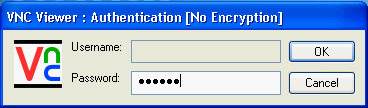
  2. Type your password for ‘root’ user which has been assign in step 3.
    Specify password


Now you have connect to Red Hat server remotely. But you’ll see that the interface looks different. You have to do a little thing more.


6.  If You want to execs Server Desktop Than do next steps.

 On Red Hat server, open terminal and type ‘vi /home/username/.vnc/xstartup’.

In this example,
I type ‘vi /home/admin/.vnc/xstartup’.


Note: If you going to enable remote access for user ‘root’,  the file would be at ‘/root/.vnc/xstartup’.

[root@sujeet ~]# vi /root/.vnc/xstartup

UN-commit below 2 lines after that save it.
 
unset SESSION_MANAGER
exec /etc/X11/xinit/xinitrc


7. Restart VNCSERVER

[root@sujeet ~]# service vncserver restart

Shutting down VNC server: 4:root                           [  OK  ]
Starting VNC server: 4:root
New 'sonu.oracle.com:4 (root)' desktop is sujeet.oracle.com:4

Starting applications specified in /root/.vnc/xstartup
Log file is /root/.vnc/chintels.chintels.com:4.log                [  OK  ]

8. Now you can connect Red Hat server from remote computer. On my Windows XP computer, open VNC Viewer on Windows XP, type IP Address of Red Hat server with number as a username specify. In this example, I want to remote to Red Hat server as ‘root’ user which I assign as number 2 in step 2 and my Red Hat server is 10.110.141.220. So I type ’10.110.141.220:1′.
  1. Note: You can download VNC Viewer for free at Download VNC® Viewer
    Test connect to Red Hat server from remote computer
  2. Type your password for ‘root’ user which has been assign in step 3.
    Specify password


 Find vnc processes id.

 [root@sujeet]# ps -ef | grep vnc | grep root


ERROR 1396 (HY000): Operation ALTER USER failed for 'Mysql'@'%'

 This MySQL error — ERROR 1396 (HY000): Operation ALTER USER failed for 'Mysql'@'%' — means that MySQL cannot find the user ...