Concurrent requests show Inactive No Manager in Apps R12

 
This definitely looked like issue with Standard Manager. But bouncing Standard manager didn’t resolve the issue. Later on I decided to bounce CCM tier but that also didn’t help.
Later on I looked into the specialization rule defined for Standard Manager and found that one of the developers had defined a specialization rule ‘INCLUDE’ for this manager for one of his concurrent program. And this was the root cause of all issue.
A specialization rule such as ‘INCLUDE’ which is used in the standard manager, tells the manager to process ONLY those requests whose job is specified in the INCLUDE rule. It drastically limits which programs the Standard Manager is supposed to process.
By default all jobs are defined to be handled by Standard Manager unless a specialization rule ‘EXCLUDE’ is explicitly defined. Hence in our case, both the reported requests/jobs are not defined with EXCLUDE in Standard Manager, they were going into ‘Inactive No Manager’ status. ‘INCLUDE’ is NEVER defined for Standard Manager.
Once the ‘INCLUDE’ specialization rule is removed, jobs started getting processed normally under Standard Manager.
 
Query to check the specialization rule defined for any concurrent program
 
SELECT decode(A.INCLUDE_FLAG,'I','Included','Excluded'),
       A.QUEUE_APPLICATION_ID,
       C.USER_CONCURRENT_QUEUE_NAME,
       B.CONCURRENT_PROGRAM_NAME
  FROM APPLSYS.FND_CONCURRENT_QUEUE_CONTENT A,
       APPLSYS.FND_CONCURRENT_PROGRAMS      B,
       APPS.FND_CONCURRENT_QUEUES_VL        C
 WHERE type_id = b.concurrent_program_id and b.concurrent_program_name = '&prog_

 Concurrent requests show Inactive No Manager? Then?
 
Solution:

1. Get the request id from the user,
2. Go to SYSADMIN --> System Administrator --> Others --> View Requests screen, search for the request. Click on Tools --> Manager log to see under which manager this program is being executed. Check the status of the manager in Concurrent --> Manager --> Administer and take necessary action.
3. If the Manager screen doesn't show any entry, this means the program is not attached to any manager. The application team needs to include this program under one of the managers.

All Concurrent Requests Have Status of Inactive No Manager


symptom: All concurrent requests have status of Inactive No Manager
cause: The cause of this problem is still undetermined.

Solution:-

1. Deactivate manager
2. Remove all specialization rules
a. Login to Oracle Applications as System Administrator responsibility
b. Navigate to: Concurrent > Manager > Define > Query for desired
manager
c. Click Specialization Rules tab
d. Delete entries
3. Activate manager
4. Add specialization rules back
a. Login to Oracle Applications as System Administrator responsibility
b. Navigate to: Concurrent > Manager > Define > Query for desired
manager
c. Click Specialization Rules tab
d. Add entries 

Reset Root passwords

How to Reset Root passwords


Various Options available

There are various methods available for resetting a root password. In this section, I will list all the major ones, and we will go over each in detail later in the document. I will also go over some steps to prevent some other person from doing this and hacking your machine.
The various methods are:
  • Boot into single-user mode (easiest, least risky)
  • Boot using a boot disk and edit the password file
  • Mount the drive on another computer and edit the password file

  Reseting passwords by booting into single-user mode

This is the easiest and the fastest method to reset passwords. The steps are a little different depending on if you are using GRUB or LILO as a bootmanager.
Booting into single-user mode from LILO
Follow these steps to reset the password when using LILO:
  • Reboot the system. When you see the LILO: prompt (see Fig. 1 below), type in linux single and press 'Enter'. This will log you in as root in single-user mode. If your system requires you to enter your root password to log in, then try linux init=/bin/bash instead.
  • Once the system finishes booting, you will be logged in as root in single-user mode. Use passwd and choose a new password for root.
  • Type reboot to reboot the system and then you can login with the new password you just selected.
Lilo Boot Menu
Figure 1. Lilo Boot Menu
If you have a new version of LILO which gives you a menu selection of the various kernels available press Tab to get the LILO: prompt and then proceed as shown above.
Booting into single user mode from GRUB
Follow these steps to reset the password when using GRUB:
  • Reboot the system, and when you are at the selection prompt (See Fig. 2 below), highlight the line for Linux and press 'e'. You may only have 2 seconds to do this, so be quick.
  • This will take you to another screen where you should select the entry that begins with 'kernel' and press 'e' again.
  • Append ' single' to the end of that line (without the quotes). Make sure that there is a space between what's there and 'single'. If your system requires you to enter your root password to log into single-user mode, then append init=/bin/bash after 'single'. Hit 'Enter' to save the changes.
  • Press 'b' to boot into Single User Mode.
  • Once the system finishes booting, you will be logged in as root. Use passwd and choose a new password for root.
  • Type reboot to reboot the system, and you can login with the new password you just selected.
GRUB boot screen
Fig. 2: GRUB Boot Screen

  Reseting passwords by using a boot disk and editing the password file

This method is a little bit more complicated than the previous one and has a very high chance of success (assuming your filesystem is not encrypted and you didn't forget the password to decrypt it if it is). As before, get permission before you do this.
To start, you need a Linux boot disk or a rescue disk. (If you didn't create one when prompted during the installation then let this be a lesson for you.) You can use your installation CD as a rescue disk; most distros have an option to allow you to boot into rescue mode. With my Redhat Linux CD, I have to enter linux rescue to start the rescue mode. But this might be a bit different in each distro. You can also use a live linux CD like Knoppix or Gnoppix for system recovery. (Click here for a list of all the live Linux CD's). In this tutorial I will use Knoppix as my rescue CD but the process is almost the same for any rescue CD you might use.
[ You can also download one of the many single-floppy Linux distributions (e.g., Tom's RootBoot ), and use it to bring up the machine as described. This is, of course, much faster than downloading and burning a rescue CD, especially on a slow connection. -- Ben ]
Follow these steps to reset the password using Knoppix:
  • Reboot the system and configure it to boot from the Knoppix CD (instructions available here)
  • At the Knoppix Boot Prompt (See Fig. 3 below) enter: knoppix lang=us to start boot Knoppix using the english locale. If you understand German, feel free to just hit 'Enter' to boot into Knoppix.
  • Once the system finishes booting, press <Ctrl> + <Alt> + <F1> (The Control, Alt and F1 key together) to switch to a virtual terminal.
  • Type mkdir mountplace to create a directory called 'mountplace'. This is where we will mount the filesystem.
  • Type mount /dev/hdaX mountplace, where /dev/hdaX is your root partition. More information on Linux partitions is available here.
  • Change to the "/etc" directory on your root partition by typing cd mountplace/etc.
  • Use your favorite text editor and open the 'shadow' file for editing. I use 'vi', so I type vi shadow (If you have a really old system, you won't have a shadow file, in which case you need to edit the 'passwd' file.)
  • Scroll down to the line containing the root user's information, which looks something like:
    root:dsfDSDF!s:12581:0:99999:7:::
  • Delete everything between the first and second colons, so that the line looks like:
    root::12581:0:99999:7:::
  • Save the file and exit your editor.
  • Type cd to return to your home directory.
  • Type umount mountplace to unmount the partition.
  • Type reboot to reboot your system, and remove the Knoppix CD from the drive.
  • Now you can log into your system as root with no password. Make sure you change the password immediately.

Find out Scheduled Concurrent Programs in Oracle Apps

Run the following script to find Scheduled Concurrent Programs and its frequency

  SELECT *
    FROM apps.FND_CONC_REQ_SUMMARY_V
   WHERE     phase_code = 'P'
         AND status_code IN ('I', 'Q')
         AND (NVL (request_type, 'X') != 'S')
         AND requested_start_date >= SYSDATE
ORDER BY program_short_name DESC;
  • PHASE_CODE status P stands for Pending
  • STATUS_CODE status I stands for Normal & status Q stands of Standby
  • Request_type != 'S' condition is to disallow Request Set Stage programs.


Script to find Scheduled concurrent programs and request sets

SELECT
A.REQUEST_ID,
B.USER_NAME,
C.USER_CONCURRENT_PROGRAM_NAME,
C.ARGUMENT_TEXT
FROM
FND_CONCURRENT_REQUESTS A,
FND_USER B,
FND_CONC_REQ_SUMMARY_V C
WHERE
B.USER_ID = A.REQUESTED_BY
AND A.REQUEST_ID = C.REQUEST_ID
AND A.REQUESTED_START_DATE > SYSDATE
AND A.HOLD_FLAG = 'N'
AND A.STATUS_CODE IN ('Q','I')
AND B.USER_NAME LIKE '%'
AND A.DESCRIPTION LIKE '%'
ORDER BY
A.REQUEST_ID
To find last run date of custom concurrent program in oracle apps
 select fcp.user_concurrent_program_name
,fcr.request_date
,fu.user_name
,fcr.actual_start_date
,fcr.actual_completion_date
,fcr.phase_code
,fcr.status_code
,fcr.argument1
,fcr.argument2
,fcr.argument3
from fnd_concurrent_programs_vl fcp
,fnd_concurrent_requests fcr
,fnd_user fu
where fcp.user_concurrent_program_name like 'Payroll Run'
and fcp.concurrent_program_id = fcr.concurrent_program_id
and fcr.requested_by = fu.user_id
order by fcr.actual_completion_date desc


Query To check Scheduled Concurrent Programs and Request Sets details


SELECT fcr.request_id,
       DECODE(fcpt.user_concurrent_program_name,
              'Report Set',
              'Report Set:' || fcr.description,
              fcpt.user_concurrent_program_name) CONC_PROG_NAME,
       argument_text PARAMETERS,
       NVL2(fcr.resubmit_interval,
            'PERIODICALLY',
            NVL2(fcr.release_class_id, 'ON SPECIFIC DAYS', 'ONCE')) PROG_SCHEDULE_TYPE,
       DECODE(NVL2(fcr.resubmit_interval,
                   'PERIODICALLY',
                   NVL2(fcr.release_class_id, 'ON SPECIFIC DAYS', 'ONCE')),
              'PERIODICALLY',
              'EVERY ' || fcr.resubmit_interval || ' ' ||
              fcr.resubmit_interval_unit_code || ' FROM ' ||
              fcr.resubmit_interval_type_code || ' OF PREV RUN',
              'ONCE',
              'AT :' ||
              TO_CHAR(fcr.requested_start_date, 'DD-MON-RR HH24:MI'),
              'EVERY: ' || fcrc.class_info) PROG_SCHEDULE,
       fu.user_name USER_NAME,
       requested_start_date START_DATE
  FROM apps.fnd_concurrent_programs_tl fcpt,
       apps.fnd_concurrent_requests    fcr,
       apps.fnd_user                   fu,
       apps.fnd_conc_release_classes   fcrc
 WHERE fcpt.application_id = fcr.program_application_id
   AND fcpt.concurrent_program_id = fcr.concurrent_program_id
   AND fcr.requested_by = fu.user_id
   AND fcr.phase_code = 'P'
   AND fcr.requested_start_date > SYSDATE
   AND fcpt.LANGUAGE = 'US'
   AND fcrc.release_class_id(+) = fcr.release_class_id
   AND fcrc.application_id(+) = fcr.release_class_app_id
   and  DECODE(fcpt.user_concurrent_program_name,
              'Report Set',
              'Report Set:' || fcr.description,
              fcpt.user_concurrent_program_name) like '%XXXXXXXX%'


---------------IST Time ---------------------------


SELECT fcr.request_id,
       DECODE(fcpt.user_concurrent_program_name,
              'Report Set',
              'Report Set:' || fcr.description,
              fcpt.user_concurrent_program_name) CONC_PROG_NAME,
       argument_text PARAMETERS,
       NVL2(fcr.resubmit_interval,
            'PERIODICALLY',
            NVL2(fcr.release_class_id, 'ON SPECIFIC DAYS', 'ONCE')) PROG_SCHEDULE_TYPE,
       DECODE(NVL2(fcr.resubmit_interval,
                   'PERIODICALLY',
                   NVL2(fcr.release_class_id, 'ON SPECIFIC DAYS', 'ONCE')),
              'PERIODICALLY',
              'EVERY ' || fcr.resubmit_interval || ' ' ||
              fcr.resubmit_interval_unit_code || ' FROM ' ||
              fcr.resubmit_interval_type_code || ' OF PREV RUN',
              'ONCE',
              'AT :' ||
              TO_CHAR(fcr.requested_start_date, 'DD-MON-RR HH24:MI'),
              'EVERY: ' || fcrc.class_info) PROG_SCHEDULE,
       fu.user_name USER_NAME,
       requested_start_date START_DATE
   ,requested_start_date+5/24+(30/(24*60)) ISO_Start_date --- +5.30
  FROM apps.fnd_concurrent_programs_tl fcpt,
       apps.fnd_concurrent_requests    fcr,
       apps.fnd_user                   fu,
       apps.fnd_conc_release_classes   fcrc
 WHERE fcpt.application_id = fcr.program_application_id
   AND fcpt.concurrent_program_id = fcr.concurrent_program_id
   AND fcr.requested_by = fu.user_id
   AND fcr.phase_code = 'P'
   AND fcr.requested_start_date > SYSDATE
   AND fcpt.LANGUAGE = 'US'
   AND fcrc.release_class_id(+) = fcr.release_class_id
   AND fcrc.application_id(+) = fcr.release_class_app_id
   and  DECODE(fcpt.user_concurrent_program_name,
              'Report Set',
              'Report Set:' || fcr.description,
              fcpt.user_concurrent_program_name) like '%XXXX%'

SQL to get list of Scheduled Concurrent Programs

Any Oracle Application (EBS) user can schedule Concurrent Programs, if he has access to it. Down the line, it is very difficult for users/administrators/developers to remember list of schedules concurrent programs. Following SQL will help to get the latest list of Scheduled Concurrent Programs.
SELECT FCR.request_id REQUEST_ID
,FCP.concurrent_program_name PROGRAM_SHORT_NAME
,FCP.user_concurrent_program_name PROGRAM_NAME
,FNU.user_name SUBMITTED_BY
,TO_CHAR(FCR.requested_start_date
,'DD-MON-YYYY HH24:MM:SS'
) REQUEST_START_DATE
,'Every '|| DECODE(LENGTH(FCL.class_info)
,39,FCL.class_info
,SUBSTR(FCL.class_info,1,INSTR(FCL.class_info,':',1)-1)||' '
|| DECODE(SUBSTR(FCL.class_info,INSTR(FCL.class_info,':',1)+1,1)
,'N','Minute(s) '
,'D','Day(s) '
,'H','Hour(s) '
,'M','Month(s) '
)
|| 'after '
|| DECODE(SUBSTR(FCL.class_info,INSTR(FCL.class_info,':',1,2)+1,1)
,'S','Start '
,'C','Completion '
)
|| 'of prior request'
) SCHEDULED_INTERVAL
,NVL(TO_CHAR(FCL.end_date_active
,'DD-MON-YYYY'),'forever'
) ENDING_ON
FROM APPS.fnd_concurrent_requests FCR
,APPS.fnd_concurrent_programs_vl FCP
,APPS.fnd_user FNU
,APPS.fnd_conc_release_classes FCL
WHERE FCR.phase_code = 'P'
AND FCR.status_code IN ('I','Q')
AND FCR.program_application_id = FCP.application_id
AND FCR.concurrent_program_id = FCP.concurrent_program_id
AND FCR.requested_by = FNU.user_id
AND FCR.release_class_app_id = FCL.application_id
AND FCR.release_class_id = FCL.release_class_id
ORDER BY FCP.concurrent_program_name
, FCR.requested_start_date

Enable Database trace

How to enable Database trace for the Apps session which is already started running

You know how to enable Database trace for Forms & concurrent request, if you know in advance. But if you wish to enable Database trace for the Apps session which already started, then you can use oradebug .
This is required if you wish to do DB tracing when a program suddenly hangs / slow   and you do not want to cancel and resubmit.

Steps to enable DB trace dynamically
1) Identify the sid using below sql.
select sid,program,module from v$session
where program like '%f60web%';
2) Identify the SPID
select spid from 
v$process 
where addr in (
     select paddr 
       from v$session 
      where sid in (&&<from step1>)
                        );
3) Enable trace using ORADEBUG.
sqlplus /nolog
connect / as sysdba
set echo on
ORADEBUG SETOSPID <spidfrom step2>
ORADEBUG EVENT 10046 TRACE NAME CONTEXT FOREVER, LEVEL 8
4) This enables trace for the running session.
  4.1)  Trace file will be found in the user_dump_dest. 
  4.2)  tkprof tracefile.trc output.txt explain=apps/<passwd> sort=prsela,exeela,fchel
5) If you want to disable , use below command from the same session (step 3)
ORADEBUG EVENT 10046 TRACE NAME CONTEXT off (Rem to turn off; to Switch off the Trace)

Concurrent Program “Pending Standby” status

Concurrent request status is PENDING STANDBY status?

Pending Standby  - Phase Pending and Status Standby means Program to run request is incompatible with other program(s) currently running.
 I have submitted one concurrent request at 19:00 Hrs (Day1) and this request is to be run by a concurrent manager which has work shift of 00:00 Hrs to 08:00 Hrs (Day 2). The moment when I submit this concurrent request it’s status will be “Inactive No Manager” until this manager goes active. Suppose I have many requests pending with this concurrent and this request couldn’t start.
Now what will be status of this request after 08:00 Hrs (Day 2) when it’s manager goes down? Here in my case it is still “Inactive No Manager” though I think it should be “Pending Standby”
This could be for different reasons (other pending requests, no place for new requests, ...etc).
Solving Concurrent Program “Pending Standby” status (Oracle EBS 11i)
There are instances when we run the Concurrent Program, it goes to “Pending Standby” status. Sometimes we can see this status get changed after few minutes but,
there are instances it will be in the same status forever. This means the request is not progressing and will not be completed ever.
To make that request to progress again, the following steps need to be carried out; Go to System Administrator Responsibility;
——>>System Administrator
————>Concurrent manager
——————–>Conflict Resolution Manager
See whether the Conflict Resolution manager is running, if is it not, activate it and it will solve the standby status issue.
If the Conflict Resolution manager is running
——->Click “Verify” button
Once completed with the verification, resubmit the previous hanging request, and it should run without any problem.

Restore Back PRODUCTION TO DEV Instance.

Oracle backup restore production copy of backup files in PROD server to Development environment


Restore Prod backup database to different existing database instance system from PROD
Source: SERVERPROD Database: ORAPROD
Destination: SERVERDEV Database: ORADEV


Pre-Conditions:
File structure on both system should be same.
Backup of ORAPROD is already in tsm server.


For PROD Admin:
PROD Admin needs to reconfigure setting to point backup path of ORAPROD from serverdev, so that ORADEV can access the
backup of ORAPROD in the
PROD server.

1. connect to serverprod and rman to find DBID

>rman target /

2. connect to serverdev and shut down oradev.

>rman target /
rman> shutdown immediate;

3. remove all the database datafiles(like undofiles,system files and datafiles)

$rm /mount1/ORADEV/* $rm /mount2/ORADEV/* ..

4. Start up instance with nomount and set dbid of ORAPROD.

rman> startup nomount; rman> set dbid XXXXXXXXXXXX;

5. Restore parameter file SPFILE to temporary location from PROD.

RMAN> run { allocate channel ch2 type ‘SBT_TAPE’ PARMS ‘ENV=(TDPO_OPTFILE=/usr/tivoli/PROD/client/oracle/bin64/tdpo.opt)’; RESTORE SPFILE TO ‘/tmp/spfileTEMP.ora’ from autobackup;
}

6.Once server parameter file is restored, shutdown the instance and startup the instance with the newly restored server parameter file.

rman> shutdown immediate; rman> startup nomount;

7. Restore controlfile from PROD server.

rman> set dbid XXXXXXXXXXXXX; rman> run { allocate channel ch2 type ‘SBT_TAPE’ PARMS ‘ENV=(TDPO_OPTFILE=/usr/tivoli/PROD/client/oracle/bin64/tdpo.opt)’; restore controlfile from autobackup; }

8. Change the database name in parameter file. RMAN> alter database mount; RMAN>sql ‘alter system set db_name=ORAPROD scope=spfile’;

9. Shutdown the server and change ORACLE_SID to ORAPROD.
rman> shutdown immediate; $export ORACLE_SID= ORAPROD

10. Change name spfileORADEV.ora to spfileORAPROD.ora in $ORACLE_HOME/dbs
$mv spfileORADEV.ora spfileORAPROD.ora

11. Start up instance with mount database and restore and recover database.
SQL> startup nomount; SQL> alter database mount; $rman target / rman>run { allocate channel ch2 type ‘SBT_TAPE’ PARMS ‘ENV=(TDPO_OPTFILE=/usr/tivoli/PROD/client/oracle/bin64/tdpo.opt)’; RESTORE database; RECOVER database;
}
12. Reset logs and shutdown
  sql> alter database open resetlogs; sql> shutdown immediate;

13. start database normal. Database ORAPROD will open normal in SERVERDEV.

SQL> startup

14. Change the database name from ORAPROD to ORADEV

sql> shutdown immediate sql> startup mount
$nid TARGET=SYS DBNAME=ORADEV
sql> alter system set db_name=ORADEV scope=spfile;
SQL>SHUTDOWN IMMEDIATE
$mv spfileORAPROD.ora spfileORADEV.ora
SQL>STARTUP MOUNT
SQL> alter database open resetlogs;

15. Database ORADEV started with ORAPROD data. Here comes ORADEV refresh completes..

Blackout configuration on Oracle Enterprise Manager


How to Configure Blackout on OEM???

Blackouts with EMCTL


I have a need to take down a database to perform a cold snapshot of the database’s files. This database is monitored by Enterprise Manager and I do not want to receive an alert when the database is down. So I need to figure out how to start a blackout in Enterprise Manager from the command line which will be included in our backup script.

On the database server, do the following:

cd $AGENT_HOME/bin

./emctl start blackout TestBlackoutEMCTL fgodba.acme.com

Oracle Enterprise Manager 11g Release 1 Grid Control 11.1.0.1.0
Copyright (c) 1996, 2010 Oracle Corporation. All rights reserved.
Blackout TestBlackoutEMCTL added successfully
EMD reload completed successfully

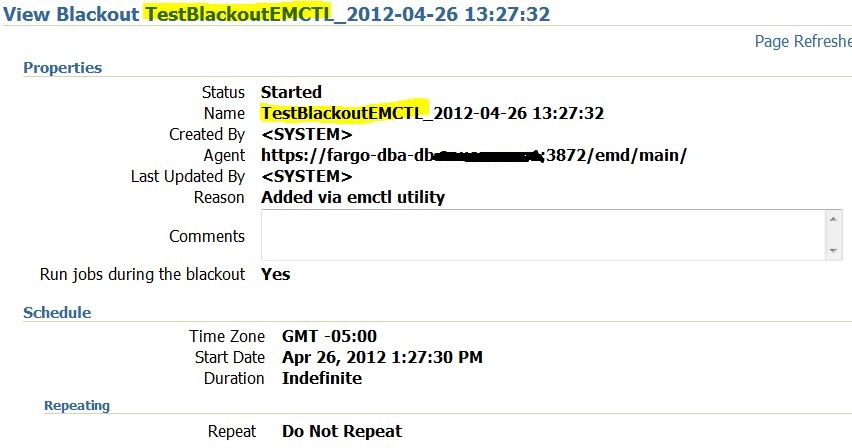
We can verify the blackout is in effect in Enterprise Manager. Sign on to EM and click on Setup -> Blackouts. You should see something similar to the following:


http://www.peasland.net/wp-content/uploads/2012/04/emctl_blackouts1.jpg


Select the blackout radio button and click the View button.

http://www.peasland.net/wp-content/uploads/2012/04/emctl_blackouts2.jpg
We can verify that the blackout name contains the string that I denoted when I started the blackout with the date and time appended to it.
We can also query the status of the blackout on the command line:
./emctl status blackout
Oracle Enterprise Manager 11g Release 1 Grid Control 11.1.0.1.0
Copyright (c) 1996, 2010 Oracle Corporation. All rights reserved.
Blackoutname = TestBlackoutEMCTL
Targets = (fgodba.acme.com:oracle_database,)
Time = ({2012-04-26|13:27:32,|} )
Expired = False

It is now time to end the blackout.

./emctl stop blackout TestBlackoutEMCTL
Oracle Enterprise Manager 11g Release 1 Grid Control 11.1.0.1.0
Copyright (c) 1996, 2010 Oracle Corporation. All rights reserved.
Blackout TestBlackoutEMCTL stopped successfully
EMD reload completed successfully


Setting EM Blackouts from the GUI and Command Line


Oracle Enterprise Manager provides you with the ability to monitor your environments and alert you once specified thresholds have been reached.  Blackouts allow you to suspend monitoring so you do not get notified.   This is useful for scheduled maintenance windows, such as cold backups, where the application and/or database may not be available.

As well, blackouts also suspends data collection for the given targets.  This means that certain metrics such as availability will not be affected.

To create a blackout from the GUI, login to Enterprise Manager, navigate to the target you would like to blackout and at the bottom of the page under Related Links you will see a Blackouts link.  You will be brought to the following page:


[clip_image002[7].jpg]


On the screen above you can view any blackouts that may currently be in effect as well as create new ones.  To create a new blackout click on the create button.

[clip_image002[8][2].jpg]

On this page you can create a name for the blackout, with the default being “Blackout-<timestamp>”.  You can also select the targets you wish to set the blackout for.   As you can see from the screenshot I am going to set a blackout for an infrastructure application server (infra10g).

You can also provide a reason for the blackout by click on the Reason drop down list.  Quite a few are available, from Server Bounce toSecurity Patch.    Jobs can be disabled by deselecting the Run jobs during the blackout checkbox.  If your applying a security patch then you may not want a scheduled backup to run as it will either error or cause problems.

[clip_image002[10][2].jpg]

The next screen allows you to select which components within the target will be blacked out.  

I selected a full blackout but you can select certain members if the outage will only affect specific components.

[clip_image002[12][2].jpg]

This screen allows you to schedule the blackout.  It can either start immediately or you can choose a date along with a duration.  Blackouts can be repeating as well, so you only have to create one for that monthly maintenance window for example.

[clip_image002[14][2].jpg]

The last screen provides a summary and once you have finished reviewing click on the Finish button.

You can also set blackouts from the command line, which is useful if you have some maintenance scripts which are not executed from Enterprise Managers job system.   I’ve only tested this on linux but it should be the same for windows.

To set a blackout for a list of targets:

emctl start blackout <Blackoutname> [<Target_name>[:<Target_Type>]]…. [-d Duration]


To set a blackout for all targets on a host:

emctl start blackout <Blackoutname> [-nodeLevel] [-d <Duration>]


-nodeLevel tells the agent to stop monitoring all targets on the server.

-d Duration allows you to set a duration in the format of [days] hh:mm.   ex. 1 02:05 means the blackout will last for 1 day, 2 hours and 5 minutes.

For example, to use this in a script in which all targets will be unavailable you would start a blackout at the beginning of the script and stop it at the end:

cd $AGENT_HOME/bin 
./emctl start blackout alltargets-myserver –nodeLevel 
<Perform Maintenance Tasks> 
cd $AGENT_HOME/bin 
./emctl stop blackout alltargets-myserver


Troubleshooting

In case you hit issues with blackouts take a look at the following notes:

Subject:     Agent Blackout Initiated By Emctl Command Not Ending      Doc ID:     559577.1

Subject:     EMDiagkit Download and Master Index   Doc ID:     421053.1

Subject:     How to Troubleshoot the EM 10gR1 Blackout Sub-system      Doc ID:     284024.1

Subject:     Troubleshooting Blackouts in EM 10g Grid Control using EMDiag Kit      Doc ID:     300671.1

They provide a lot of information and solutions to different scenarios.   I hit an issue over the weekend in which the blackout didn’t end properly.  When I tried to stop it from the command line:

[oracle@myserver ~]$ /u01/app/oracle/product/agent10g/bin/emctl stop blackout alltargets-myserver 
Oracle Enterprise Manager 10g Release 3 Grid Control 10.2.0.3.0. 
Copyright (c) 1996, 2007 Oracle Corporation.  All rights reserved. 
Blackout stop Error : Blackout name alltargets-myserver is invalid


When trying to end the blackout via Enterprise Manager:

Error stopping the blackout on "infra10g": ORA-20710: Agent-side blackouts cannot be edited or stopped ORA-06512: at "SYSMAN.MGMT_BLACKOUT_ENGINE", line 501 ORA-06512: at "SYSMAN.MGMT_BLACKOUT_ENGINE", line 3262 ORA-06512: at "SYSMAN.MGMT_BLACKOUT", line 74 ORA-06512: at "SYSMAN.MGMT_BLACKOUT_UI", line 1167 ORA-06512: at line 1 .


To fix this problem I performed the following:
1. Shutdown the agent on the target server myserver 
2. Removed the blackouts.xml file under $AGENT_HOME/sysman/emd 
3. Used note 421053.1 to install the EMDiag kit 
4. Logged in as sysman on the Enterprise Managers repository database and executed the following query:

select blackout_guid, blackout_name 
from mgmt_blackouts;


BLACKOUT_GUID                    BLACKOUT_NAME 
-------------------------------- ---------------------- 
30E2956CA329F0E59FBDF50951F2578E alltargets-myserver


5. Then executed: 

exec mgmt_diag.KillBlackout(HEXTORAW(‘30E2956CA329F0E59FBDF50951F2578E’)); 

6. Restarted the agent on myserver and when I looked in Enterprise manager the blackout had cleared. 

I have seen the command used above for some other scenarios but not this one specifically.   Before executing any commands in your environment please test first.


ERROR 1396 (HY000): Operation ALTER USER failed for 'Mysql'@'%'

 This MySQL error — ERROR 1396 (HY000): Operation ALTER USER failed for 'Mysql'@'%' — means that MySQL cannot find the user ...